Hiển thị các bài đăng có nhãn VPN. Hiển thị tất cả bài đăng

GreyhoundzVPN : Free Internet for Globe/TM, Smart/TNT, Sun - PC, Android, iOS

GreyhoundzVPN : Free Internet for Globe/TM, Smart/TNT, Sun - PC and Android

GreyhoundzVPN offers free internet for Globe, TM, Smart, TNT and Sun by registering a VIP account. GreyhoundzVPN servers boast fast speeds which can attain 7-10mbps because it's not congested. The advantages of using VPN are Secure Transactions, Unlimited Internet, Stops Phishing Attack, Stay Anonymous, Unblock Websites, Stops Malware, Download anything you want. This 2019, they are offering free access to their Premium Hong Kong server.

If you want to see other VPN tutorials. See List of Free VPN tutorials.

How to setup GreyhoundzVPN : Free Internet for Globe, TM, Smart, TNT, Sun - PC, Android, iOS


For PC Users

Requirements:
* PC/Laptop-Windows
* Pocket Wifi/USB-Stick Modem/B593 Modem openline/B22 modem/OT350 Ultera modems/Tether-Hotspot mobile/936 modem, Any kind of openline modem/mobile.
* Download Net Framework, it is required by greyhoundzVPN PC UI, if you have already Net Framework installed you can skip this.
* Register Free Account (valid for 5 days only)
Instructions:
1. Plugin your favorite modem and configure APN first depending on your network, edit your APN according to your chosen network.
2. Connect your modem
3. Open greyhoundzVPN. (for first time users, accept the TAP driver installations)
4. In the 'Account' tab, enter your username and password.
5. After entering the account details. Choose your network/promo and Free Server - Hongkong.
6. Click 'Connect', and you're DONE. You can now browse the internet for free.

For Android and iOS Users

Requirements:
* Android device or iPhone (3G/4G/LTE capable)
* Must be registered to Network Promos with APN settings configured
* Register Free Account (valid for 5 days only)
* Download OpenVPN (Google Play | Apple App Store)
1. Configure APN first depending on your network, edit your APN according to your chosen network. Go to your network settings and find APN settings.
2. Turn On Mobile Data.
3. Open OpenVPN app.
4. Tap 'Import icon' then select 'Import Config from SDCard etc'. Locate the Free Server - HongKong.ovpn file you've downloaded.
5. Enter your GreyhoundzVPN free account details.
6. Tap 'Connect' and you're DONE. Enjoy browsing, downloading, gaming especially Mobile Legends and video streaming in YouTube.

  • [message]
    • REMINDER
      • All ISPs are able to block your sim if you download more than 2GB. So, always monitor your download.
If you have any concerns regarding this Greyhoundz VPN Free Internet tutotial, you can leave your comment below. Thanks for reading.

Source: greyhoundzvpn.com
ProxyLite VPN : Free Internet for Globe, TM, Smart, TNT and Sun (PC, Android, iOS)

ProxyLite VPN : Free Internet for Globe, TM, Smart, TNT and Sun (PC, Android, iOS)

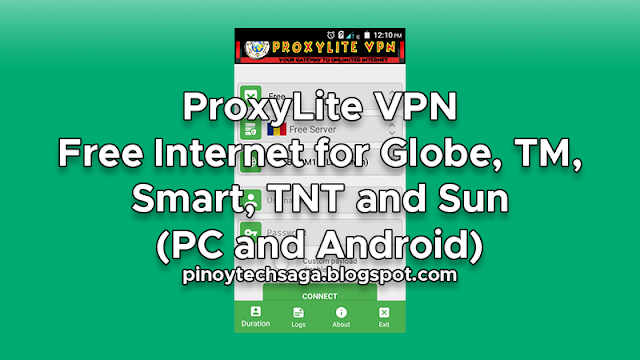
ProxyLite VPN offers free internet for Globe, TM, Smart, TNT and Sun using PC, Android and iOS, with configs for Smart No Promo and Globe/TM No Load. ProxyLite VPN is a tunneling software that can secure user's internet connection bypassing all the data to their encrypted tunnel. This is the first VPN in the Philippines to feature MAUI, which can blocks ads, malware and allows you to access KissAsian, KissAnime, KissManga and DramaFever once you're connected to any of the servers, which can also save mobile data usage.

The advantages of using ProxyLite VPN Free Server are secure transactions especially in online banking and online payments, unlimited internet, prevents phishing attacks, stay anonymous from your ISP, unblock all websites, stops malware and download anything you want. Enjoy downloading files, videos and music. Surf the web or browse popular social networking sites like Facebook, Twitter and Instagram with no restrictions. Play your favorite online games like Mobile Legends, AOV, ROS, Dragon Nest, Ragnarok Eternal Love and Free Fire with low ping. Watch YouTube and other video sites with fast speeds.

How to setup ProxyLite VPN : Free Internet for Globe, TM, Smart, TNT and Sun (PC, Android, iOS)


Major Requirement:
Register a free account. Go to ProxyLite VPN Registration Page, enter the required details, wait for validation email and activate your account.

Notes:
Disable IDM/EagleGet integration to prevent download error.
Downloading torrent is not allowed.
Free users must login once a week to prevent account deletion.

Setup ProxyLite VPN for PC Users

Requirements:
* PC or Laptop - Windows OS
* Any 3G/4G LTE Openline modems such as Pocket WiFi, USB-Stick Modem, 936 LTE modem, 938 modem, B593 Modem openline, B22 modem, OT350 Ultera modem or Tether-Hotspot mobile. Or any network locked modems like Globe Pocket WiFi, Globe Prepaid Home WiFi, Smart Bro Pocket WiFi, Smart Bro LTE Home WiFi or Sun Broadband Pocket WiFi
* Your preferred SIM, Globe, TM, Smart, TNT or Sun Cellular Prepaid
* Go to ProxyLite VPN Download Page and download ProxyLite VPN for Windows (v.4.0) (Update 04/04/2019: Sun CTC/TU fixed)
* Register to promo used in VPN according to your network
* .NET Framework required (skip this if you already have Net Framework installed in your PC/laptop)

Procedure:
1. Plugin your favorite modem. Configure your APN according to your network.
2. Connect your modem.
3. Install TAP drivers (for first time users) and open ProxyLite VPN.
4. Choose FREE server and your chosen network. Input your account details.
5. Click Connect and wait until the VPN log displays 'You are now connected'. And you're Done! You can now browse the internet for free, surf, download, stream anything you want.

Setup ProxyLite VPN for Android Users

Requirements:
* Android device 3G/4G/LTE capable
* Your preferred SIM, Globe, TM, Smart, TNT or Sun Cellular Prepaid
* Go to ProxyLite VPN Download Page and choose among the following:
ProxyLite Reloaded for Android Devices (v1.0) (Update 04/04/2019: Direct, Inject & SSL/TLS feature)
ProxyLite VPN for Android (v6.2) (Update 04/04/2019: Sun CTC/TU fixed)
ProxyLite SSH for Android (v2.2) (Update 04/27/2019: Sun CTC/TU fixed)
* Register to promo used in VPN according to your network

Procedure:
1. Configure APN first depending on your network. Go to your network settings and find APN settings.
2. Turn On Mobile Data.
3. Launch ProxyLite VPN app.
4. Choose Free for account type, Free Server for the server, select your network and input your username and password.
5. Tap 'Connect' and wait until it connect successfully. Enjoy free internet in your Android phone or tablet. You can do unlimited browsing, downloading, gaming and video streaming in YouTube.

Setup ProxyLite VPN for iOS Users

Requirements:
* Apple iOS device (iPhone/iPad)
* Your preferred SIM, Globe, TM, Smart, TNT or Sun Cellular Prepaid
* Download OpenVPN Connect for iOS in the App Store
* Go to ProxyLite VPN Download Page and download ProxyLite OVPN Configs for iOS (v1.9)
* Register to promo used in VPN according to your network

Procedure:
1. Configure APN first depending on your network. Go to your network settings and find APN settings.
2. Turn On Mobile Data.
3. Launch OpenVPN app.
4. Tap 'Option' then select 'Import Config from SDCard etc'. Locate the ovpn file you extracted.
5. Input your free account details.
6. Tap 'Connect' and wait until it sucessfully connected. And you're DONE, enjoy free internet in your iOS device.

  • [message]
    • REMINDER
      • All ISPs are able to block your sim if you download more than 2GB. So, always monitor your download.
If you have any concerns regarding this ProxyLite VPN Free Internet tutorial, you can leave your comment below. Thanks for reading.

Credits: ProxyLite VPN (SulitNet Solutions, wOpwOp of SPTeam) formerly Squash VPN

WenzVPN : Free Internet for TM, Globe, TNT, Smart, Sun - PC and Android

WenzVPN : Free Internet for TM, Globe, TNT, Smart, Sun - PC and Android

WenzVPN is one of the pioneer when it comes in Free VPN in the Philippines created by wenz609 of symbianize or a.k.a Wendell Gallenero. Since 2011, WenzVPN provides Free VPN service which can used for anonymity purposes or free internet for Globe, TM, Smart, TNT and Sun. If you're an old symbianize user, along with wenz609, you will remember also Ddrwang Ddennser (known for his quote: "Net Neutrality") and 89dufpoqidjv (known for his quote: "Ako ay may lobo lumipad sa langit di ko na nakita pumutok na pala, Sayang lang ang pera ko binili ng lobo kung sa pagkain sana nabusog pa ako") which are also pioneers not in providing VPN service but in helping Filipinos in saving their money by releasing FreeVPN - free internet tutorials.

I just want to share wenz609 quote which is really inspiring:
"WenzVpnFree, Unlimited Internet 24/7 for FREE. I don't mind sacrificing an amount out of my pocket for the servers monthly bill. I just want everybody happy. Giving credits might be enough for me. SHARING IS BLESSING."

If you want to see other VPN tutorials. See List of Free VPN tutorials.

How to setup WenzVPN : Free Internet for TM, Globe, TNT, Smart, Sun - PC and Android


For Android Users (WenzVPN Injector - 2019 Update) [Globe, TM, Smart, TNT, Sun]
Requirements:
* Android phone 3G/4G/LTE capable with ES File Explorer installed
* Globe, TM, Smart, TNT or Sun SIM (for load options check instructions below)
* Download wenzvpninjector.apk and install wenzvpn
* Download wenzvpn-injector-wvc-configs.rar and extract the wvc files

Instructions:
1. Turn on Mobile data.
2. Open WenzVPN Injector, tap 'IMPORT' and locate for the WVC file config matching your network.
~ TNT - load 10 and text IG10 to 4545 valid for 3 days - locate wenz-tnt-ig10.wvc
~ Sun - load 50 and text TU50 to 247 valid for 10 days - locate wenz-sun-tu50-up.wvc (Tip for Sun No Capping: load Sun TU50 or higher TU promo directly to Sun load retailer)
~ Sun/Smart - Sun load 20 and text TU20 to 247 valid for 3 days, Smart load 30 and text ALLOUT30 to 9999 valid for 2 days - locate wenz-smart-allout-sun-tu20.wvc
~ Globe/TM - Globe load 50 and text GOSURF50 to 8080, TM load 50 and text EZ50 to 8080, valid for 3 days - locate wenz-globe-gowatch-tm-easywatch.wvc
~ Globe/TM using Globe Switch FREE offers - locate wenz-globe-switch.wvc
3. Tap 'CONNECT' and wait until it successfully connected.
4. DONE! You now have free internet access.

For PC users (OpenVPN - OVPN Config)
Requirements:
* PC/Laptop-Windows
* Pocket Wifi/USB-Stick Modem/B593 Modem openline/B22 modem/OT350 Ultera modems/Tether-Hotspot mobile/936 modem, Anykind of openline modem/mobile.
* Download WenzVPN_10.1.16_PC_Portable.rar (extract it first)
* Download WenzVPN_updated_OVPN_configs.rar (extract it first)
* Must be registered to Network Promos with APN settings configured, For Globe MGC (www.globe.com.ph) no need load.
* In case you lost WenzVPN free account : Message Us.

Instructions:
1. Plugin your favorite modem and configure APN first depending on your network, edit your APN according to your chosen network.
2. Connect your modem. For Globe MGC, try connect disconnect until you get an IP address prefix of 10.11 or 10.83.
3. Download and run WenzVPN Portable. Accept the TAP driver installations.
4. Now, move the WenzVPN updated OVPN configs to data > config and replace existing.
5. In WenzVPN icon located at bottom right part, right click and connect Romania server (recommended), you can also try other servers.
6. Wait until it prompts 'Romania is now connected'.
7. Done! You can now browse the internet for free. To disconnect, just right click the icon again and locate the server and click disconnect.

For PC users (HTTP Proxy Injector - HPI Config) [TM (Luz/Vis/Min) and Smartbro(Viz/Min) only]
Requirements:
* PC/Laptop-Windows
* Pocket Wifi/USB-Stick Modem/B593 Modem openline/B22 modem/OT350 Ultera modems/Tether-Hotspot mobile/936 modem, Anykind of openline modem/mobile.
* Download HTTP Proxy Injector (find the latest version), Installation Password : a-dev1412
* Download WenzVPNFree2017_HPI_TM_Smartbro.rar (extract it first)
* TM sim registered to promo, refer to List of Globe/TM, Promos Used in VPN
* Smartbro, no need load, no need promo
* In case you lost WenzVPN free account : Message Us.

Instructions:
1. Download, install and run HTTP Proxy Injector.
2. Click 'File' menu the choose 'Import Config'. Locate where you downloaded and extracted WenzVPNFree2017_HPI_TM_Smartbro.rar
3. In the 'Inject' tab, just click 'START' and you're done! Browse, stream and download.

For Android Users (HTTP Injector - EHI Config) [TNT, Globe and Sun]
Requirements:
* Android phone 3G/4G/LTE capable with ES File Explorer installed
* TNT, Globe or Sun sim registered to promo, refer to List of Globe/TM, Promos Used in VPN
* Download WenzVPNFree2017_EHI_TNT_Globe_Sun.rar (extract it using ES File Explorer)
* Download WenzVPN_updated_OVPN_configs.rar (extract it using ES File Explorer)
* In case you lost WenzVPN free account : Message Us.

Instructions:
1. Turn on Mobile data.
2. Open HTTP Injector, tap 'Option' then select 'Import Config' and locate for the EHI file related to your current network.
3. Tap 'Start'.
4. Launch Openvpn.
5. Tap 'Option' then select 'Import Config from SDCard etc'. Locate the ovpn files you extracted.
6. Input WenzVPN free account details.
7. Select 'Free servers' depending on EHI file that you used in HTTP Injector.
8. Done! You now have free internet access, browse Facebook, Twitter, Instagram, stream YouTube and Spotify, play online games and download files.

  • [message]
    • REMINDER
      • All ISPs are able to block your sim if you download more than 2GB. So, always monitor your download. This reminder is to avoid abuse of Free VPN usage also.
If you have any concerns regarding this Wenz VPN Free Internet tutotial, you can leave you comment below. Thanks for reading.

Credits: Astig29 of phcorner | wenz609, bimbi, darkraven & SPTEAM of Mobilarian (Symbianize)

PHCorner VPN : Free Internet for Globe and TM - Android, No Load Needed

PHCorner VPN : Free Internet for Globe and TM - Android, No Load, No Promo

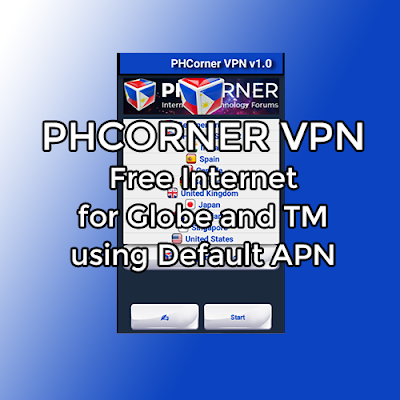
PHCorner VPN offers free internet for Globe and TM using the network's default APN (Access Point Name) settings, it means no more additional settings required. PHCorner VPN is available for Android only and it is modded especially to Globe and TM, no load, promo or Globe Switch are needed in order to connect.

The advantages of using VPN are secure transactions especially in online banking and online payments, unlimited internet, prevents phishing attacks, stay anonymous from your ISP, unblock all websites, stops malware and download anything you want.

PHCorner VPN Features


* Android based Free VPN (Not For Sale).
* Fast stable servers (India, Spain, Canada, Germany, United Kingdom, Japan, Netherlands, Singapore, United States and two custom servers: PHCorner Server 1 and 2).
* Unlimited Bandwidth
* Torrents are allowed
* Injected with fast payload
* Easy to use interface
* Modded APK for Globe and TM.
* No need load, promo or Globe Switch.
* No account registration needed.
* ONE CLICK CONNECT. No more additional settings required. The default Globe and TM APN settings (http.globe.com.ph) is enough.

How To Setup PHCorner VPN Free Internet for Globe and TM - Android


Requirements:
* Android phone or device with sim slot (3G/4G/LTE capable)
* Globe or TM (Touch Mobile) sim. APN: http.globe.com.ph (Go to Cellular/Mobile Network Settings > APN/Access Point Name > create new APN > Name: Globe, APN: http.globe.com.ph, Authentication type: CHAP)
* Download PHCorner_VPN_v1.0_8.2.apk
* No load or promo needed. See Promos for VPN.

Procedure:
1. Download and install PHCorner VPN apk (download link above).
2. Turn on your mobile data. 3G, H+, 4G or LTE must appear on your status bar on the top.
3. Open PHCorner VPN application.
4. Choose a server. If you want a low ping and fast server dedicated to your location, just choose 'Best Performance'.
5. Tap the 'Start' button. (When a popup message occurs like this: "Attention! PHCorner VPN attempts to create a VPN connection..." Just check the 'I trust this application' and tap OK.)
6. Wait until it connect successfully.
7. Done! Enjoy your free internet. You can do unlimited browsing, downloading, gaming especially Mobile Legends and video streaming in YouTube.

You might also like:
TunnelCat VPN : Globe No Load Free Internet for Android
Free Internet Tutorials (HTTP Injector, HTTP Proxy Injector, Psiphon, Shadowsocks and HTTP Net Header)

If you have concern regarding this PHCorner VPN mod apk 2019, you can leave your comment below.

Thanks for reading!

Credits: PHC-Frenz of PHCorner

TunnelCat VPN : Globe No Load Free Internet for Android

TunnelCat VPN : Globe No Load Free Internet for Android

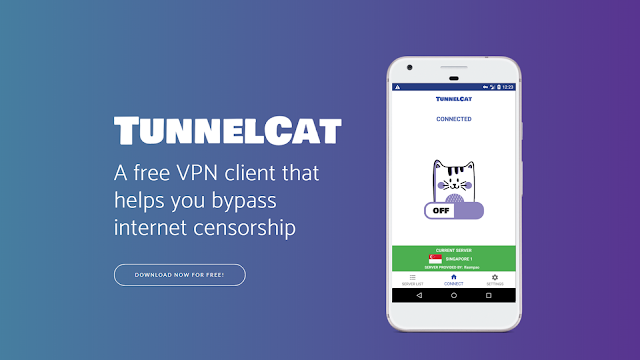
TunnelCat VPN is a free VPN client for Android that helps users bypass internet censorship. And it's more than just a VPN, it can tunnel data through DNS, SSL, HTTP tunnelling and other methods powered by OpenVPN. TunnelCAT VPN offers free internet for Globe using the network's default APN (Access Point Name) settings.

The advantages of using TunnelCat VPN Servers are secure transactions especially in online banking and online payments, unlimited internet, prevents phishing attacks, stay anonymous from your ISP, unblock all websites, stops malware and download anything you want. Enjoy downloading files, videos and music. Surf the web or browse popular social networking sites like Facebook, Twitter and Instagram with no restrictions. Play your favorite online games like Mobile Legends, AOV, ROS and PUBG mobile with decent ping. Watch YouTube, Netflix and other video sites with decent speed.

How to setup TunnelCat VPN Free Internet for Globe No Load


Requirements:
Android phone or device with sim slot (3G/4G/LTE capable)
Globe Prepaid or TM SIM, no load no promo
Default Globe Prepaid APN (Settings > Cellular/Mobile networks > Access Points Names > select myGlobe Prepaid - http.globe.com.ph)
Download and install TunnelCat VPN (internet connection required)

Procedure:
1. Turn on your mobile data.
2. Open TunnelCat VPN app.
3. Open the Settings (gear icon).
4. In the Payload Configuration, select GENERATE.
5. From the dropdown menu, change the Tunneling Method to DNS.
6. Tick the checkbox for Use System DNS.
7. Tap GENERATE PAYLOAD.
8. Click the magnifying glass icon and select your desired Server. Some of the servers to choose from: Singapore, Philippines, Netherlands, Canada, United States, Latvia, United Kingdom, Germany, India
9. Tap the center icon in the bottom to go back to the main interface.
10. Tap START CONNECTION and wait until it successfully CONNECTED.
11. Done! Enjoy Globe free internet. You can do unlimited browsing, downloading, gaming especially Mobile Legends and video streaming in YouTube.

Note: Downloading torrent is not allowed.

If you have any concerns regarding this TunnelCat VPN Free Internet tutorial for Globe and TM, you can leave your comment below. Thanks for reading.

Credits: tunnelcat.lfasmpao.me

BlueVPN [VIP only] : Free Internet Setup for Globe, TM, Smart, TNT and Sun

BlueVPN Free VPN in the Philippines

BlueVPN is one of the most popular free vpn service in the Philippines. According to their website, "BlueVPN provides a secure environment for everyday web use. Once you establish a VPN connection all of your online data (emails, instant messages, data transfers, online banking) pass through our encrypted tunnel."

BlueVPN has the following features : DDOS Protection, Secure Transactions, Unlimited Internet, Stops Phishing Attack, Stay Anonymous, Easy To Use, 24x7x365 Support, Unblock Websites, Stops Malware, Download Torrents and Videos From Anywhere.

BlueVPN offers two free servers with free account. You can use BlueVPN for free internet or anonymity purposes. But this post will discuss on how to use Blue VPN to bypass Philippine ISPs for free internet.

If you want to see other VPN tutorials. See List of Free VPN tutorials.

How to setup BlueVPN for Free Internet (Globe/TM, Smart/TNT and Sun Cellular)

Requirements:
General Requirement
* Must have one of the following SIM card: Globe, TM, Smart, TNT or Sun Cellular
For PC Users
* PC/Laptop (Windows OS - Win XP, 7, 8 or 10)
* Pocket Wifi/USB-Stick Modem/B593 Modem openline/B22 modem/OT350 Ultera modems/Tether-Hotspot mobile/936 modem
For Mobile Users
Android device or iOS (iPhone) 3G/4G/LTE capable with SIM card slot

BlueVPN Client Download:
Visit and join BlueVPN FB group page (https://www.facebook.com/groups/1997453700555278/)
To download the specific bluevpn client for your device, use the FB groups' search function and input the keyword of your device:
"PC/Laptop" - if you are using computer or laptop with USB dongle, Pocket WiFi or 936 Modem as mode of connection.
"ANDROID" - if you are using Android phone or device with a sim slot.
"IOS" - if you are using iPhone.

Find the latest client which is usually placed on the latter part of each platforms.

These are the 2018 BlueVPN Clients according to each platforms:
PC/Laptop - SVL Injector - with .svi configs
Android - KPN Revolution - with .ktr configs

These are the 2017 BlueVPN Clients according to each platforms:
FOR PC/Laptop - BlueVpn Gui v5.0 - with Shadowsocks servers
FOR ANDROID PHONES ONLY - BlueVpn Android apk v8.0 or BlueVPNSSv1.0.apk for Android (SHADOWSOCKS)
FOR IOS/ANDROID(OPENVPN CONNECT) - BlueVpn iOS/Android - TNT/TM Promos, MGC w/ VIP servers v2.4

BlueVPN FREE ACCOUNT:

Update: BlueVPN doesn't offer free account now. You must avail a premium account.
Visit and join BlueVPN Official Facebook Group Page to find legit resellers
https://www.facebook.com/groups/1997453700555278/

APN Setup:
For Globe/TM (Luzon/Visayas/Mindanao):
APN : http.globe.com.ph
APN : www.globe.com.ph (no load required but expect a slow internet speed due to speed capping).

For TNT (Luzon/Visayas/Mindanao):
APN : internet

For Sun Cellular (Luzon/Visayas/Mindanao):
APN : mms

For Smart (Visayas/Mindanao):
APN : internet

REGISTER to a Promo according to your sim:

Instructions:
This instruction is for BlueVPN GUI only.
1. Plugin your favorite modem and configure APN first, edit your APN according to your chosen network (please refer to the list of networks APN posted above).
2. Connect your modem, or open the Mobile Data of your smartphone.
3. Download and run BlueVPN Client. Look for 'Install Adapter' for PC users only.
4. Now, enter BlueVPN free account. (please refer to the BlueVPN Free Account posted above).
5. After entering the account details. Choose "FREE SERVER 1" or "FREE SERVER 2".
6. Then CHOOSE your Network.
7. Click "Connect", and you're done.

You can now browse different sites and download direct links EXCEPT FOR TORRENTS.

To connect to different servers or torrent servers, you must have a premium account. To avail PREMIUM ACCOUNT, look for resellers or subresellers with available vouchers at https://www.facebook.com/groups/1997453700555278/
  • [message]
    • REMINDER
      • All ISPs are able to block your sim if you download more than 2GB. So, always monitor your download.
Sources : blue-vpn.net and BLUEVPN COMMUNITY